
CANVA is a simple designing tool and a new way to design beautiful and professional graphics. It has Launched in 2013 and within 14 months of launch and had more than 1 million users creating more than 7 million designs. There are more free templates in this App. For more about CANVA
Canva is a super easy tool for all of your graphic design needs. You can even create your logo using this app, You can create any type of that you want.
Here we learn to use Canva step by step in this Canva tutorial for beginners. start with creating two different designs and give you a bunch of tips and tricks. we can see how quick and easy it is to create your designs even if you don’t have any previous graphic design experience. Using this app you can create Instagram posts, YouTube thumbnails, Pinterest Pins, Facebook cover images, YouTube channel art, and more.
In the free version of canvas, you will be able to do almost all. Once upgrade to Cava Pro you can remove the background from images, easily resize your designs, have unlimited folders, upload your brand kit, and more. Once we create your free account you can also sign up for a free one-month trial of Canva Pro.
Table of Contents
Table of Contents
HOW TO USE CANVA?
This APP allows anyone to create effectively with many design types.
CANVA is often used for creating presentations for work, developing pitch proposals, and creating blog graphics and social media posts
It gives you the tools you would like to make stunning graphics
Everyone will be able to create an account?
Yes, .you can create an account with an email id.
What are the features?
Creating a Facebook post
Do you want to create social media images for business or personal life? Here we show you how to use Canva, a free online graphic design tool, to quickly create high-quality images for your social media posts.
If you are a business owner and looking for professional-looking images can help you attract more customers. The saying, “a picture tells a thousand words,” applies well to social media. And you will get more engagement with that images.
For your business, you may pay a huge amount for designers and it’s not practical for all and may be out of your budget. So better to learn to create the design.
For designing Canva, no graphic design experience is needed. Here you will get ready-made designs that can be quickly customized to your needs. Canva has a list of templates like the one below, do most of the design work for you, so you can focus on crafting and sharing your message.
Choose a template:
Select a template appropriate to your business
Replace the photo and upload a new one: Upload a photo, or choose from Canva’s stock images.
Customize the text and edit: Change the head and body text to match your message.
Choosing a template
Canva’s templates do most of the planning work for you. choose a template that only needs a few changes.
In our example, we’d like to promote a bike sale on Facebook. So we’ll choose Facebook Post on the homepage.
You can scroll through the templates or use the search bar to assist narrow down your choices. You can search for one or more keywords in the search bar.
check out these ideas:

Color: Choose one or more preferred colors.
Occasion: look for an occasion type like a purchase or birthday.
Photo Content: Find a template that already features a photo of your chosen topic like dogs or flowers.
We’re selling cupcakes at the bake sale, so we’ll type in cupcakes to ascertain which templates already include photos of cupcakes.
Now we can optimize which template would make your audience stop scrolling through Facebook to look at your post. In this case, we’re searching for one that will prefer by kids and families.
Then start with that template.
Now we got a great template, Let’s customize it as per our preference Since Canva’s templates are already attractive and easy to read, we don’t want to change much.
Finding a new Image
Changing the photo may be a great way to customize your image. If you’ve got a business, you’ll want to incorporate a photograph of your products or location. Or you might want to look at Canva’s stock images for one that best matches your message.
Here you have some options:
Upload: Click and Uploads to import a file from your computer. This will store in the CANVA app
Select a Canva stock image: Click Photos and keywords into the search bar to seek out free and paid photos.
This template features a photo with a Canva watermark because it’s a paid image. You have the choice to exchange the photo with a free one or buy the image. Typically, images cost one dollar each.
Just Focus on the free version CANVA.
We’ll remove the photo by clicking the trash icon at the highest of the page.
Then, we’ll use the search feature to seek out a free one. To find out more free images in your search, it’s best to type a single keyword in the search bar. We’ll type cupcakes.
Once you discover one you wish, you’ll click it to feature it in the template.
Resizing the photo
Although we’re changing the photo, we will keep the planning by placing it within the same spot. Now change the size of the image photo by dragging the corner or side handles.
Depending on how you size it, it’d also crop the image to suit. Click on the menu bar and do the further changes
Then you’ll move the image around within the frame until you wish what you see. Then click Done.
Reordering elements
When changing the Image, you can adjust some design elements. For example, within the template, the photo was behind the white rectangle, but now it’s ahead. Luckily, we will fix that by adjusting the ordering.
GRIDS AND IMAGES
If you’re using photographs in your design, always place them during a grid because grids allow you to simply resize (larger or smaller) or manipulate the placement of your images so that you’re capturing the parts of the photo that employ best for your overall design
EASY FRAMES
Frames are also decorative placeholders for your photos and it’s better to use to enhance the design
ICONS AND INFOGRAPHICS
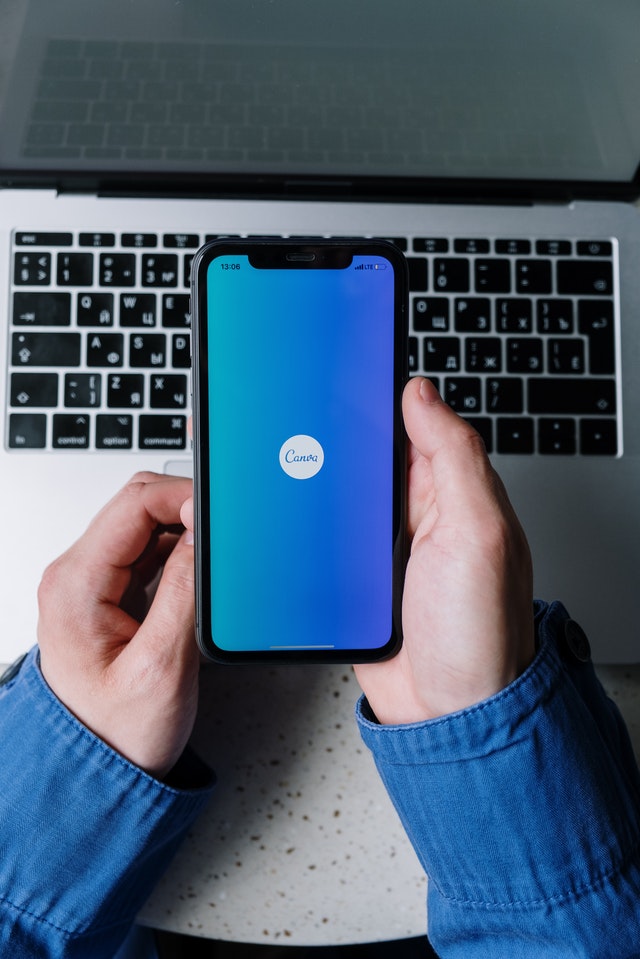
CANVA tutorial
Use icons or infographics from the CANVA library if you want an alternative to photographic images. A simple icon can bring emphasis to a specific element to your design or message.
SHAPES
Shapes are an integral part of any design and may utilize in interesting and creative ways
HOW TO SEARCH
– Search by contributor
If you find a photo you particularly like and search for additional photos from that contributor by clicking on the ‘i’. So it appears once hover your mouse over the image.
Layouts Slide
Layouts – Choose a striking template
If you’re almost sure where to start together with your design and choose one among the handful of lovely layouts the CANVA design team has created for every design template.
TEXT
Use a text box
On the Text page, you can find all of Canva’s text options live. Select a large header, a mid-sized subtitle, or smaller text for your body copy.
BACKGROUNDS
CANVA tutorial
Choose a CANVA background
If you would like a background that gives more depth or visual interest, choose one among the various backgrounds.
These backgrounds range from more minimalist photographic-style images to textured or patterned backgrounds.
Uploads
UPLOAD YOUR IMAGES
opt for a picture in your photo library by uploading it into your design and do further editing.
- Facebook cover photos. Your Facebook Cover photo is that the very first thing your audience sees when clicking onto your profile. …
- Branded images. …
- Pinterest graphics. …
- Reviews. …
- Instagram Stories.
- When it involves creating engaging and unique content on social media, it can sometimes desire a beast that consistently must be fed. And with data showing that visual content is received better by users, creating aesthetically pleasing designs to assist convert your followers can become a very time-consuming task.
- As with any work task that needs doing, it is vital to form anything that’s time-consuming, time-efficient. and that is where Canva comes in. trying to find a simple social media graphic design tool? You’ve come to the proper place.
- Facebook cover photos
- We can make Facebook cover photos using the canva app.
- It allows you to spotlight something important.
- It shows you’re active on Facebook
- It instantly shows elements of your brand through the utilization of font, colors, and style.
- Canva has thousands of free Facebook page templates that are professionally designed. These templates can be customized with a couple of clicks. Canva templates have the proper dimensions, so you’ll make certain to urge a pixel-perfect design whenever.
- Branded images
- We can create branded Images using this app
- Canva makes branding images as simple as a haul and drop
In a post created by Canva, this bespoke design uses the Canva logo within the bottom right corner, without overtaking the planning.
- Pinterest graphics
- Pinterest remains a purchase opportunity for users to seek out and have interaction with content and lead them back to your product, blog, or homepage.
- Whether you would like to point Pinterest users back to a blog post, or just get them to save lots of an inspirational quote, Canva has thousands of Pinterest graphics in various shapes and sizes that will allow you to make a design that stands out.
- one of the simplest ways to point out social proof of your brand and help potential customers trust you is thru reviews.
What’s the vision behind Canva?
● Canva may be a simple new thanks to designing beautiful and professional graphics.
● Launched in 2013 and within 14 months of launch, had quite 1 million users creating
more than 7 million designs.
● Allows you to require your vision or message and translating it into a design.
● Anyone, including non-designers, can design with Canva.
● Canva takes the thinking out of learning the UI; you’ll spend longer creating.
● Canva has found a robust presence in social media, marketing, business, entrepreneurial,
and educational communities.
What am I able to create with Canva? How do you use Canva step by step? Can you take notes in Canva? Is Canva free to use?
● Canva allows anyone to speak effectively with many design types.
●we can create presentations for work, developing pitch proposals, and
creating blog graphics and social media posts.
● There are tools you would like to make stunning graphics that convey your
message.
1) Everyone is going to be ready to create an account
2) study how Search works
3) study Layouts
4) study Text options
5) study Backgrounds options
6) find out how to upload your images into your Canva design
Create an account
Have the category navigate to www.canva.com and make an account.
Search – the 2 ways to look
● the primary thanks to search are to use the category folders found within the master search panel.
● The second thanks to search are to perform a keyword search in Canva’s rich library of more
than a million stock photographs.
Search – Grids and pictures
● If you’re using photographs in your design, always place them during a grid.
● Grids allow you to simply resize (larger or smaller) or manipulate the location of your
images so that you’re capturing the parts of the photo that employment best for your overall
design.
Frames
● Frames are often wont to hold or resize images.
● Frames also are decorative placeholders for your photos.
: Search – Icons and Infographics
● Use icons or infographics from the Canva library if you would like an alternative to photographic
images.
● an easy icon can bring emphasis to a specific element to your design or message.
● within the examples, the sun and grass icons highlight the sunny and nature themes of every
design.
Search – Shapes
● Shapes are an integral part of any design and may be utilized in interesting and artistic
ways.
● within the examples, we’ve used a shape to make a border around the “Style Sessions”
● If you discover a photograph you particularly like (perhaps it’s the design or content of the image),
search for additional photos from that contributor by clicking on the ‘i’ that appears when
you hover your mouse over the image.
● this may display the contributor’s name and associated keyword tags.
● Click on the contributor’s name to ascertain the opposite photos they need to be added to the Canva
library.
Beginner’s Challenge
Shapes
These are the building blocks of design and add texture, depth, and
organization to your design.
Squares :
particularly versatile as they
can be used to highlight, underline, and create borders around the text.
If you like to focus on a particular photo, click on the ‘i’ button on the
picture to search for more photos from the same contributor.
If you don’t wish to start from scratch, choose one of the dozens of
well-designed layouts that have been created for each design type.
Hundreds of layouts are fully customizable so you can change them.
Now you can customize the text, colors, and backgrounds as needed. headlines, subtitle, or body text boxes and adjust the
font and size to complement your design. Change the default font size if you regularly use the same fonts
If you don’t have any idea where to start, choose from hundreds of text boxes
to tastefully frame the text for your design.
Canva background using to provide a backdrop for your design
that’s textured and more visually compelling.
SliLayouts – Customize a template
● the sweetness of the Canva layouts is that they’re fully customizable.
● you’ll modify the text and alter the colors and backgrounds to fit your design
needs.
how you’ll select a layout then customize the text, color, background image.
Text – Use a text box
● There is a text page is where all of Canva’s text options live.
● Select an outsized header, a mid-sized subtitle, or smaller text for your body copy.
● If you seem to default to equivalent fonts and sizes for these three text types, change the
default options for added convenience.
Do you want to know how to save/export/download a Canva design as PDF?
Do you know the main difference between the two PDF options: PDF Standard vs. PDF Print?
Do you want to learn exactly how to create high-resolution PDFs for print purposes (posters, flyers, invitations, infographics, etc.)?
Do you know how to show crop marks and bleed — and how to make sure you don’t end up having white borders when you print?
In the end, you don’t want your big poster to have ugly white edges on each side. Here are some ideas on how can make money with Canva. You can sell the graphic design work as a service, you can create thumbnails for people, or you can help them rank on Pinterest by modeling which pins already are working for competitors.
For more tutorial refer below:
Check out: More About CANVA and For further applications .
video tutorial here






wow i really enjoy reading this, do you post often ? i will check back for more update, you can also check me out at https://webdesignagentur.de.com/ one of the top Marketing Directory site in Germany